One of the most useful panels I attended at NYCC this year was the one on Social Media for Creators.
Buddy Scalera from ComicBookSchool.com moderated, and Jimmy Palmiotti, Matt Hawkins, Tim Washer, and Dennis Calero spoke and answered questions.
Here are my notes:
In the "Kickstarter Generation," you can be successful by excelling in these areas: you can be good, you can be fast, or you can be cheap. Just pick two!
Of course, there’s a bit more than that.
You also have to be likeable.
Jimmy suggested starting with your family/friends/coworkers. He also suggested that you be inquisitive about people. Talk to them. “What do you do?” is a good place to start. Find like-minded people on Twitter and engage.
Build relationships using connections, contextualizing them, and letting them know what you want to happen.
Self-branding. Using humor. The evolution of journalism.
Tim Washer on the importance of humor. He showed us a pie chart of the percentage of people who like to laugh. It’s everyone!
So how do you make that work for you? Have can you be funny with your social media?
Brevity is the soul of wit, so be brief. And funny. Don’t worry about being too ludicrous and absurd. The ludicrous and absurd GETS ATTENTION! Play around, have fun, and just trust that something will happen.
He mentioned a woman with 23,000 followers on Twitter who got a free trip to Japan because she made short videos using lots and lots of photos (with music) about the stuff she loves. She said she wanted to go to Japan, and she got it! Follow her lead. Be passionate, have fun, be brief and say what you want.
LAUGH! Relax. The big ideas will come to you.
One way to come up with funny ideas is with Comic Juxtaposition. (I know about this from my political cartooning days. One thing makes you think of another and so on. Suddenly you find two things that are so different and yet weirdly fit together—and that’s funny! That’s the “Oh, I get it” moment in comedy. For example, there are many similarities between school and prison life. They both have cafeterias where people get served food on trays and have to take those trays to a table where they have to eat with others who are in the same position. Taking things that are exclusive to one of those situations and putting it in the other could be funny. For example, you could draw a comic strip with two tough looking school girls sitting at a table in a cafeteria. One asks that others, “So what are you in for?”)
Tim Washer had us give example of two things that don’t go together. We went with “banana” and “toy store.” We then had to give attributes for each of those. One of the attributes for banana is that people slip on them. Two of the attributes for toy stores are that they sell toys to parents.
Suggestion #1: BANANA
Attributes: Slipping
Suggestions # 2: TOY STORE
Attributes: Toys, Parents
Tim put those two together and came up with the idea of a Slip ‘N Slide at an office. It’s funny, because it’s absurd.
This association process is also called “webbing.”
Matt gave ThinkTank on Facebook as an example of a good strategy. ThinkTank is about science, and the guy who does it writes observations, personal stuff, and some promotion. (I don’t know if this is the same ThinkTank I found, but these people post a video a day.)
You have to discover your VOICE. In Improv, there’s a game called “The Rant.” The point of the rant is to let you see who you truly are. It helps you discover your honest Voice.
On dealing with trolls:
Jimmy and Matt will delete comments and block attacking commentators (on their blogs and/or Facebook pages?). You can argue, but keep it civil. Jimmy will sometimes DM people to get them to stop their angry comments. Usually when they realize there’s a human being on the other side, they stop.
Jimmy says that when you’re dealing with an angry person, you should smile, wave, and say, “Have a nice day!” You can delete the thread that’s gotten out of control and post a picture of a sunset. It diffuses the situation. Comedy diffuses bad situations.
Dennis says that people want to get to know you, warts and all. If you have problems, people will support you.
Someone recommended a book called On Intelligence, which is about the brain and pattern recognition. Humor is about seeing patterns in disparate things (what I call the third “S” of comedy: “Sense.” The other two are “Setup” and “Surprise”).
Matt says, “Be about something.” You can’t be mysterious if you aren’t famous.
Dennis says you should be a Voice with a distinctive personality. People tend to forget there’s a real person on the other side. Remind them.
Someone asked which platforms they prefer.
Tim likes Instagram and Facebook, but you have to find the platform that works for you.
Jimmy also likes Instagram. Twitter is great, because you can ask for retweets—AND you can retweet others.
Dennis draws every day and posts on Instagram. (This is probably a habit I should get into, posting something visual or a video EVERY DAY.)
Matt gives freebies and writes a week of promotional tweets and Facebook posts one day a week and then schedules them. (This is probably a habit I should get into, too.) He loves Facebook advertising and spends $50 a day, money he considers well spent.
Dennis says build a following and put out a pure vision.
THE TAKEAWAY FOR ME: Post something funny, short, and visual that helps show who you are at least daily. You can create this content once a week and schedule it to release through the week. Use Facebook and Twitter--and start using Instagram. Post your observations and personal stuff, and just a little promotional stuff. Use the ludicrous and the absurd to get attention. Laugh, relax, be passionate, have fun, and be brief. Be inquisitive about others, find connections to contextualize your relationships online, and let them know what you want to happen.
Sunday, October 18, 2015
My Notes from the "Social Media for Creators" Panel from New York Comic Con 2015
Labels:
2015,
artist,
artists,
comedy,
comic books,
comic con,
creator,
creators,
funny,
hep,
how to,
humor,
illustrator,
marketing,
NYCC,
social media,
social media for creators,
tips,
writer,
writers
Wednesday, July 09, 2014
Everything You Wanted to Know about Publishing a Picture Book (But Didn’t Know Who to Ask): Part 4—Publishing
Everything You Wanted to Know about Publishing a Picture Book (But Didn't Know Who to Ask):
Part 1—Introduction
Part 2—Writing
Part 3—Illustrating
If you've followed the instructions in the first three articles in this series, you should now have the text and the illustrations you’ll need to indie publish a picture book. Great! This last article will show you how to combine all these elements into pdf files that you can upload to CreateSpace, so you can finally publish your book.
Create the File for
the Interior of Your Finished Book
Until now,
you've probably been creating or scanning and manipulating artwork in a
pixel-based art program, like Adobe Photoshop (the industry leader) or Corel
Photo-Paint (what I use, because it’s great and much cheaper than Photoshop).
At this point, you'll probably want to transfer your illustrations to a
vector-based design program, like Adobe Illustrator or CorelDRAW. This will
make it easier to turn your illustrations into a multi-page PDF, which is the
format your book will need to be in so you can upload it for publishing.
Click File
and then New to create a new document in your vector-based design program and
format it to fit the correct size, number of pages, color format (CMYK), and
dpi (300) for your book. Here’s an example of a file setup from CorelDRAW for a
40-page book with an 8.5” by 11” trim size:
Import your
finished artwork page by page to the correct page it’s meant to go on in the
finished book and fit it so that it exactly fills the page. (Using “Snap to
Page” can help you make sure that you reach the edges exactly.) Once you've
done this for all of your pages, save the document before continuing.
Insert Text
Open your
Word document with all the lines of text for your story (as well as the
copyright page and any other extra pieces of text that are going to go into
your book) already formatted in the font, size, and leading that you want in
your finished book. As I mentioned in the second
article of this series, I asked my writing friends about font size, and
most of them said that 16 was the right size font for picture books. I went
with 20, because anything smaller seemed to disappear on the page, but 16 is
certainly acceptable. It’s also recommended to use a san serif font, like
Helvetica or Arial, for picture books, because younger eyes find these simpler
fonts easier to read. (I chose Arial Rounded, because the rounded look seemed
to fit the fairy-elephant look that I was going for.) A wide leading (space
between lines) also makes text easier to read, so a leading between 1.25 and
1.5 should work well. Copy and paste each piece of text from Word into the page
it’s meant to go on, and then save the file again.
Layout Your Book
Make sure
text is legible and contrasts with the background. Make text on dark
backgrounds light, and make text on light backgrounds dark. If the background
has a variety of colors, it might help to put a partially see-through dark or
light background between the text and the part of the illustration where the
text goes. You can also use the opposite of the color that’s in the background.
For example, if the background is dark blue (which is a combination of cyan and
magenta), yellow is the color that will best make the text stand out.
When I was a
layout artist for a newspaper, I learned that black and red don’t work well
together. Give it a try, and you’ll see how red text seems to disappear against
a black background, and black text seems to disappear against a red background.
Switch one of the colors for white or yellow, and you’ll also see how much
better these colors work with black and red.
You can also
apply drop-shadow to the text to make it stand out a bit more, like I did in
this page from Fay Fairy’s Very BIG Problem:
![]() |
| A page from Fay Fairy’s Very BIG Problem |
Add the text
for the inner title page, copyright page, and any other extras that are meant
to go into the book (like a dedication, a note about the author, or added
information about the book or other picture books by the same author). Except
for the copyright page, convert each finished page into a bitmap. (In CorelDraw
X7, for example, that requires clicking on Bitmaps at the top, and then “Convert
to Bitmap” on the top of the drop-down menu.) Once you do this, the text (as
well as drop shadow and any other elements) will become a fixed part of the
illustration. Later on, you won’t be able to undo it, so don’t convert your
pages to bitmaps until you’re absolutely sure the page is the way you’re going
to want it in the finished book, text included. I recommend saving the file every time you
convert a page to bitmap, just in case the program crashes at any point. It
probably won’t, but large 300 dpi files take up a lot of memory, so it’s best
to play it safe.
You can also
convert the file containing your cover, back cover, and the spine of your book
to bitmap, although I highly recommend you first give it a new name, so you can
still make changes to the original file later on if necessary.
The
copyright page has to be done last, because it will need to include the ISBN
that CreateSpace will give you later on.
Alternatively,
if you don't have a vector-based design program, you can select all of the
objects on a page and then hit “combine all objects” in your pixel-based art
program. I suggest doing it the other way, because most pixel-based programs
don’t let you create multi-page
documents, which means you'll have to insert each page into something like Word
before you can convert it into a PDF. There is, however, one advantage to doing
it that way: Amazon Kindle prefers Word documents to PDFs, so creating your
file in Word might make it a little easier to convert your print book to an
e-book. Either way, you'll have to reformat all of your pages later on to fit a
Kindle, which means you'll have to convert all of them to RGB color at 96 dpi
and the right size for Kindle, which is 800 by 1280 pixels for all of Amazon’s
color Kindles to date. (Black-and-white Kindles use a different format, but it
makes more sense to format a full-color children’s book for the Kindle Fire) There
are, however, much easier ways to format a picture book for Kindle. Download Formatting Children’s Books and Comics by
Charles Spender (the fifth file on the list you'll find here)
to learn more. Another option is to use Kindle Comic Creator, as this video explains:
Creating a Picture Book
Using Kindle Comic Creator. CreateSpace does allow publishers to publish to
Kindle easily, pretty much with just the click of a button—but I have learned
from experience that this doesn't work with full-color, fully illustrated
books. It’s just best to format and publish your print book and your Kindle
ebook separately.
Why, you
might be asking, must you convert all your pages to bitmaps or “combine all
objects” on each page? You have to do this because it will lower the size of
your book’s interior PDF file. That’s important, because CreateSpace can only
take interior files that are less than 400 MB. That might seem like a lot, but
30 or more pages at 300 dpi with layers can really add up. Combining layers
into one bitmap makes the file a lot smaller, so you can upload it to
CreateSpace.
Publish It!
So now you have almost everything you’re going
to need to put together those two PDFs and publish your picture book! You still
have to get an ISBN, and you’re going to have to put it on your book’s
copyright page. You can buy your own, but CreateSpace will give you an ISBN for
free, and using CreateSpace’s makes it easier for CreateSpace to distribute
your book to more markets.
So let’s
head to CreateSpace.com now.
Sign in on
the left, or click on the orange “Start a title for free” button if you don't
have an account yet and need to create one.
Once you've
created an account and logged in, you'll be taken to your dashboard, which show
“My Account” on the left, your member ID number, the CreateSpace Message Center
(where you can find the emails that CreateSpace has sent you), your royalty
balance for the current month, a list of your books with their ID numbers and a
place you can click to order copies, and information about how many copies each
of your books have sold so far this month. (Yay, I just found out I sold
another copy of Why
My Love Life Sucks! Thanks, paperback purchaser with excellent taste. You
just made my day.) Click on the button that says “Add New Title” near the top
middle of your dashboard. Or if you've already started creating your book,
click on the book’s name. This will take you to the Project Homepage of that
title.
Here’s one for a picture book I'm working on called Click the Dog:
Let’s ignore the Create and Sales &
Marketing sections for now and focus on the three columns in the middle: Setup,
Review, and Distribute.
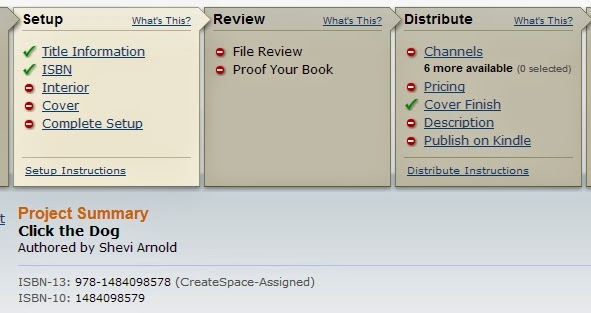
Click on
“Title Information” under Setup. Fill in the required information on the next
page (you can tell it’s required because it has an asterisk after it). This
includes your book’s title, the primary author, and the Language of your book.
You’ll also want to click on the drop-down menu for “Add Contributors” to
select “Illustrated by” and then click on the blue “Add” button to credit the
illustrator, too. Look over all the other fields to see if there’s anything
there that you need to fill in because it’s relevant to the particular book you’re
publishing. When you’re done with that, click on the blue Save & Continue
button at the bottom of the page. This will take you to the next page, which is
the one where you can add your own ISBN (if you have one and want to use it) or
get an assigned CreateSpace ISBN.
Once you
have your ISBN, you can copy and paste the number into your copyright page. And
once you've done that, you can turn that page into a bitmap. And once you’ve
done that you’re now ready to turn the file of your book into a PDF. Yay!
The
vector-design program you’re using may have three ways to do this.
1. You might
see a “Publish to PDF” option in the File drop-down menu.
2. There
might be a PDF option in the Print menu.
3. And you
might be able to choose PDF as a format under Export.
Whichever
way you do it, make sure to check all the options to verify that your PDF will
have 300dpi, be in CMYK, and (if that’s available) made up of bitmaps. Once
you've published, printed, or exported to PDF, open your PDF file in a PDF
reader to make sure that it looks the way you want it to. If it doesn't—for
example, if it's in grayscale or the illustrations don't go all the way to the
edges of the page—go back to your file, try to create a PDF again (possibly
using a different method), and try to see where you might have gone wrong.
Eventually you should be able to create a PDF that’s exactly the way you need
it to be. You’ll also need to create a PDF of the file with your book's front
cover, back cover, and spine. (For more information on creating this file,
check out the article
about illustrating in this series. You can also check out the CreateSpace
article on formatting
your book's cover.)
Now that
you've created the PDFs for your book's interior and its front and back cover,
you’re ready to move onto the next step: uploading your book's interior.
Select “Full Color” under Interior Type, and then click on “Choose a
Different Size” to select the trim size for your book. Then select “Upload your
Book File,” click the blue Browse button, find the PDF of your book’s interior
that you created, and double click on that.
You'll be asked to select whether or not you want the interior pages
to bleed. “Bleeding” means that the artwork will go past the trim size, so that
when the book is trimmed, the artwork will go all the way to the edges of the
page. For most picture books, you'll want to click on “Ends after the edges of the page.” Leave “Run automated print checks and view
formatting issues online” checked. Scroll down and click on the blue Save
button. Your book should now upload. This step will probably take several
minutes, since you are going to be uploading a rather large file.
When it's done uploading, you'll have the opportunity to review the
file online. Look over each page very carefully to see if there's anything
you've missed. There could be a missing period or a word accidentally written
twice. Maybe the text doesn't show up against the background as well as you'd
like it. Use the double page view to check how the odd and even pages that will
go together look side by side. Make sure that everything is exactly how you
want it—because if it isn't, this is the last time you'll be able to easily fix
what needs to be fixed.
The Interior
Reviewer will automatically tell you about certain issues, like if parts of
your books are less than 300 dpi, and which pages have these issues. Make sure to click on each issue so you can
figure out what needs to be fixed and where. If anything does need to be fixed,
you’ll have to upload a new file. Jennifer from CreateSpace put together a list of the
top 10 file specification challenges publishers seem to run into when trying
to upload their books and covers to CreateSpace’s website, so you might want to
check it out if you run into any issues.
![]() |
| The Interior Reviewer from "Members' Top 10 Specification Challenges" from the CreateSpace forums, article by Jennifer, CreateSpace PrePress. Here you see what happens when an image appears to be placed too close to the edge of a page. |
When the Interior Reviewer no longer finds any issues and you're
completely satisfied with how your picture book looks online, click the blue
Save button at the bottom. If you don't see a Save button at the bottom, try
uploading your book's interior with a different browser. I ran into this
problem with Chrome, but everything was fine when I switched to Firefox.
Once that's done, it's time to save your work and move onto the
cover. You can go there by clicking the blue Save & Continue button at the
bottom or Next at the top or of the Interior page. You can also go there by
clicking on Cover under Setup on the left.
Select glossy or matte. (I don't recommend ordering a sample copy,
since this will not be a copy of your book and it will cost over $6 with
shipping, but that is an option.) If you're not sure which to choose, look at
picture books that you have at home or from your local library. Do they have
glossy or matte covers? If you see both kinds, which do you prefer? I went with
glossy, because that seems to be standard, and I like the way my cover came out,
but it's up to you.
Now it's time to upload the PDF you made with your book's back cover
on the left, the book's spine in the middle, and the book's front cover on the
right. Under “Choose how to submit the cover of your book” select “Upload a
Print-Ready PDF Cover.” Click the blue Browse button, find the PDF of your
cover on your computer, and double click on that.
The maximum
size for your print-ready PDF cover is 40 MB, and if you converted your file to
a bitmap (or combined all objects in a pixel-based art program), your file
should be below that. Once you've successfully uploaded your cover, click Save
& Continue.
This will
take you to Complete Setup, where you'll be able to check everything over and
then submit your book for review. Once you've done that, you'll see a little
clock icon next to File Review on your book's Project Homepage while
CreateSpace is reviewing it. When the review process is done, that clock icon
will turn into a checkmark. You can then order a proof of your book. It's
highly recommended that you do so, but if you’re in a hurry and you're
absolutely sure the book looked perfect when you reviewed it online, you can
skip this stage. I did that with Fay Fairy’s Very BIG Problem,
because I needed copies of the book for a street fair and couldn't afford to
wait. (Unfortunately, it still didn't arrive in time.) The book looked exactly
as it did when I reviewed it online, so I don't regret skipping this stage. Your
book's proof will look almost identical to what your finished book should look
like, except that it will have a page in the back with the word “proof” written
in huge letters.
And now
you're ready to set up your book for distribution. Yes!
I'm going to
speed through this last section, because—unlike the process of putting your
book together, converting it to a PDF, and uploading it—it’s mostly
self-explanatory.
Some of these channels are only available to those with a CreateSpace supplied ISBN, which is another reason why you’ll probably want to use theirs instead of buying your own.
One thing
worth noting about the CreateSpace eStore is that you can give people the link
to your book's page there, along with a discount code that will let them get
your book for less. For example, if you go to https://www.createspace.com/4807674
and enter the discount code JHCCQCWM, you can get Fay
Fairy’s Very BIG Problem for 30% less than the retail price. For the most
part you'll be buying your own books at cost, which is currently $3.65 for a
40-page full-color picture book, but the link and discount code might be useful
if you're trying to give a wholesaler, bookstore, or school a special deal. Of
course, you can also purchase the books yourself at cost and have them shipped
either to you or to the wholesaler, bookstore, or school.
Once you've selected your book's
distribution channels, it's time to set the price. CreateSpace takes all the
guesswork out of this, by telling you what the minimum list price is for your
title is in US dollars, British pounds, and Euros. It also tells you how much
you'll be making in each of the distribution channels based on the prices
you've set. While it might be tempting to set your price high so you'll make
more money for each copy sold, be careful you don't price yourself out of the
market. Paperback picture books tend to be cheap. On the flip side, don't worry
if the minimum list price seems too high. Amazon and other retailers (excluding
CreateSpace's eStore) will almost certainly sell your book at 10% or more off
the retail price.
Finally, you enter the required
information in your book's Description page. This includes the book's description
(up to 4,000 characters and with limited HTML coding, but watch out for
problematic characters, like apostrophes and ampersands); the BISAC category of
your book (probably a subcategory of Juvenile Fiction), which you’ll select
from a menu; your author biography (up to 2,500 words about your qualifications
or reasons for writing this particular book); the recommended grade reading
level for the book; the book’s language and country of publication; and the
five most relevant search keywords for your book.
And that is how you indie publish a
picture book with CreateSpace.
I hope you've found this helpful, and if you have (or if you still have questions), I hope you'll let me know in the comment section below.
Happy writing, illustrating, and publishing!
Labels:
advice,
children's books,
CorelDraw,
createspace,
errors,
file size,
formatting,
help,
how to,
indie publishing,
issues,
pdf,
Photoshop,
picture book,
publishing,
uploading
Thursday, June 26, 2014
Creating a Picture Book using Amazon Kindle Comic Creator
I'm putting together the last article in my series on how to indie publish a picture book, and I realized it would be a good idea to point you to some helpful resources for publishing a picture book to Kindle, as well. This video on Amazon Kindle Comic Creator is a good one. Comic Creator is free, and you can download it here.
Sunday, June 22, 2014
Everything You Wanted to Know about Publishing a Picture Book (But Didn't Know Who to Ask): part 3--Illustrating
In the first
two parts of this series, I showed you why you might want to publish a picture
book, why I prefer to publish through CreateSpace,
and what goes into writing a picture book. Now it’s time to discuss what makes
a picture book a picture book—illustrations.
Illustrate It
There are so
many ways to produce artwork for a picture book; but no matter how you do it, you’ll
save time and make your art look its best if you make it the right dimensions, amount
of room for text, dpi, format, and so on from the start. This article is about
how you can do just that when preparing a picture book for publication with
CreateSpace.
Every
illustrator works differently. I like to draw a storyboard as thumbnails,
sketch individual pages with a pencil on a piece of paper or cardboard, ink it,
scan it, and then color it on my computer. Some like to draw on a tablet, like
a Cintiq,
that inputs their work directly into a computer. (I’d probably do that myself
if I could only afford one!) Others like to work almost entirely on paper or
canvas. And still others prefer to work in clay or another three-dimensional
form of art that has to be photographed before it can become a picture book. No
matter how you plan to do it, it’s best to keep in mind from the start what you’ll
need to make the finished book look great.
![]() |
The stages of an illustration from Fay Fairy’s Very BIG Problem: a pencil drawing; the inked drawing (in this case drawn on top of a light board to let me make changes more easily and avoid unsightly leftover pencil lines or smudges); the drawing digitally colored in the correct dimensions, format, and dpi required; and the final page with text added and with all the elements combined with the background, ready to be turn into a PDF for uploading. (I did originally draw thumbnails for this picture book, but I no longer have a copy of them.)
|
Dimensions
It’s best if
the dimensions of your artwork match the pages of the finished book, plus a bit
extra for edges that will probably be trimmed off. This is particularly true if
you intend to choose the bleed option for your book, and you probably will. “Bleed”
means that the artwork you submit will run a little past the edges of the
trimmed book. You'll probably want that, because otherwise any color
backgrounds you create might have unsightly white edges if the book doesn't get
trimmed exactly right (which it almost certainly will be).
CreateSpace
has a few basic trim sizes it prefers to print books in, and—except for the
square 8.5”x8.5” trim size—all have portrait dimensions, not landscape. I was
surprised to discover this, since I own so many picture books with landscape
proportions. You'll notice that the first pencils I did for this book were in a
landscape format. That turned out to be strangely lucky, because it meant I had
a lot more space on the page to put text than I had originally thought. (CreateSpace
does offer a landscape option when you click on “More Sizes,” but because these
additional sizes aren't industry-standard, they might not fit bookstore or
library shelves and aren't recommended.)
![]() |
| CreateSpace’s recommended trim sizes |
With CreateSpace, you need to add 0.125 inches to all edges of the page that might be trimmed, which means adding 0.125” to the width and 0.25” to the height (since the top, bottom, and outside edge of the page will be trimmed, but the side of the page next to the spine won’t be). I chose the 8.5” x 11” size, because I like big picture books (they seem to work better for books that adults are meant to read to children), and because I felt the large size better reflected the title, Fay Fairy’s Very BIG Problem. This meant I had to create finished artwork that was exactly 8.625” wide (8.5” + 0.125”) by 11.25” high (11” + 0.25”).
Space for Text
Space for Text
Of course,
the amount of space you'll need to leave for text will depend on the amount of
text that will go on that page, as well as the chosen font size and leading (the
space between the lines). Some old-fashioned picture books have so much text on
a page that they have little or no artwork on any page that contains text,
leaving illustrations to every other page in the book. Usually, these books
will have text on the left and illustrations on the right. Some picture books
have only have a word on each page, and some even have no words at all. Most,
though, need to have about a quarter to a third of the page available for text.
This space doesn't have to blank, but it shouldn't contain too many colors or
include any important or distracting elements.
It’s best if
the text is at least an inch away from the edges of the books on all sides—including
the gutter (the side of the page that meets the spine). In fact, you should try
to avoid putting anything important within half an inch of the top, bottom, and
sides of the page. The external edges might get cut, and the reader might not
open the book wide enough to see what’s in the gutter. This is especially true
for double-page spreads.
Another
thing to keep in mind when it comes to double-page spreads is to avoid putting
horizontal lines near the gutter. The two pages might not line up correctly
vertically, so a horizontal line might end up looking oddly higher on one page
than another.
Dimensions and Format
When you’re inputting
artwork or manipulating it on a computer, work in 300 dpi (the minimum required by CreateSpace) and CMYK (which are printer colors, not computer
monitor colors). Save in your art software’s native format, whatever it may be.
(For example, I work in CorelDraw, so I save my files either in cdr or ctp
format.) Anything else, like gif or jpg, might alter the look of your artwork or
degrade the digital files each time you save them. Don't worry about
compatibility issues. No matter what format you work in, you'll eventually have
to convert the entire book into a pdf file when you upload it to CreateSpace (I'll go into how to do that in the next article).
I also
recommend that you avoid over-saturating colors. This is something I learned
when I was a comics magazine editor. It’s best to err on the side of caution.
For example, 100% Cyan and 50% Magenta make a very nice dark blue. Yes, you can
go with 100% of those two color and add some black to create a really dark,
dark blue, but it’s overkill. When it comes to printed books, less usually
works better. Also, if you can avoid putting bright red next to black, you probably
should. Those two colors don't like each other (which is something I learned
when I was a layout artist at a newspaper).
Storyboarding
Create a
storyboard that shows you how even and odd pages will look next to each other. Remember
to keep the first page alone on the right (which is the standard for books that
don't start with a double-page spread), and remember that even pages of books
in English will go first on the left, and odd pages will go after them on the
right. Try to design side-by-side pages that complement each other or at least
don’t tell a story you don't want to tell. Consider things like where your
characters are looking and how the colors on these pages will best look
together. In general, characters looking to the right are looking toward the
next page of the story, and that’s usually (but not always) a good thing.
Colors should be balanced in some way, so that if a color appears on one page,
it will often help to have that color or a similar color on the facing page. Also,
consider how the eye will flow through the two pages, whether any of your lines
are pointing at something, and whether that’s something you want to stand out.
Aside from
the story itself—which should fill 32-38 out of 40 pages—you'll need to design
the cover, back cover, copyright page, interior title page, and any other extra
pages that will be going into the book. Have fun with them. There’s no reason why
any page in your book should be boring. Here’s the copyright page of my book,
for example:
![]() |
| The copyright page for Fay Fairy’s Very BIG Problem |
I also used
the interior title page to tell part of the story. It’s the first time the
reader gets to see Fay as a fairy, and it’s important, because she doesn’t look
like a fairy again until the end of the book. You’ll also noticed that I used
different shades of the same color as the copyright page so the two will look
right side by side. Fay’s magic wand is also on both pages.
![]() |
| The interior title page of Fay Fairy’s Very BIG Problem |
You might want
to design filler pages for the back and possibly the front of the book to make
sure that a shorter story can fill 40 pages without any of those pages being
blank. (This is a mistake I made, because I figured that CreateSpace would be
okay with a 32-page book. That’s NOT the case. They turned my 32 pages into 36—an
unusual number, considering that most printers prefer the number of pages to be
divisible by eight. If I had known that, I would have filled those pages myself.)
You’ll need
to have a file with just the front cover, so that CreateSpace, Amazon, and
others can show the cover on your book’s page; but you’ll also need an
additional file that includes the front cover on the right and the back cover
on the left, with 0.002252” times the number of pages added to the width to
account for the spine. For example, a 40-page picture book will need the file
with the front and back cover to be 0.09008” wider than the width of the cover
and back cover alone side by side. (For example, a 40-page book like mine with
pages that need to be designed so that they are 8.625” wide will have a
combined front and back cover file that is 17.34008” wide, which is 8.625” +
8.625” + 0.09008”) The front and back cover should more or less match up at the
spine, because there’s a possibility that a part of the front cover near the
spine might end up in the back, or vice versa.
Make sure
that the back cover of your book has a space at the bottom right, where
CreateSpace can insert a barcode.
And finally,
as with the story, the illustrations in a picture book need to be clear enough
to convey the story easily. Also, as with the story, they need to appeal to
both the adults who will buy the book and the kids that the adults are buying
the book for. Look at recently published picture books to get an idea of how the
different visual elements work. And again, as with story, you can read Writing
with Pictures: How to Write and Illustrate Children's Books by Uri Shulevitz for more information
on this topic.
~*~
Okay, so now you should have the text and the illustrations for your picture book ready for publication. In the next and last article in this series, I’ll show you how to prepare it all so you can upload it to CreateSpace, publish it, and start selling it.
Everything You Wanted to Know about Publishing a Picture Book (But Didn't Know Who to Ask):
Part 1—Introduction
Part 2—Writing
Part 3—Illustrating
Part 4—Publishing
Labels:
advice,
book,
children's,
createspace,
help,
how to,
illustrate,
illustrating,
illustration,
illustrations,
indie,
picture,
publish,
publishing,
self-publish,
self-publishing,
tips
Monday, June 16, 2014
Everything You Wanted to Know about Publishing a Picture Book (But Didn't Know Who to Ask): part 2 of 4—Writing
After
publishing four novels for kids, teens, and adults who love YA books, I decided
to publish a picture book: Fay
Fairy’s Very BIG Problem. I ran into a few problems of my own, and so I
decided to write this series of articles to remind me how to avoid or overcome
those problems next time, and so others can do the same.
In the first
part of this series, I showed you some of the right and wrong reasons to indie
publish a picture book, the skills necessary to do it right, and why I choose
to indie publish with CreateSpace.
Now we're going to look at the first stage of creating a picture book—writing.
Write It
If you're
reading this, you probably already have something written down or you at least
have a good idea of what it is you want to write. I have, however, noticed a
few basic mistakes that picture-book writers often make when they're starting
out.
First, a
picture book should be under 1,000 words—and under 500 words is even better. Little
kids have short attention spans. Make a picture book too wordy, and your book
will probably lose their attention. So make it as short as you can, and make
every word count.
Second, a
picture book isn't just a story with pretty pictures added to it. A picture
book needs pictures to tell the story. So if your story
contains any words that can simply be shown in the illustrations . . .
Cut. Them. Out. For example, if your story says, “Abigail had red hair,” or
even “Abigail’s red curls bounced as she walked,” cut out the part about how
her hair looks. Let the illustrations simply show what Abigail's hair looks
like. If you're not an illustrator, don’t even mention it in the illustration
notes unless it’s vital to telling the story. You might feel inclined to tell
the illustrator, for example, that Abigail has red hair because your daughter
has red hair, and you want the character to look like your daughter. But if it's
not really vital to the story, leave it out. Let the illustrator best tell his
or her part of the story the best way that the illustrator knows how. Maybe
that’s drawing Abigail with red hair, but maybe it's drawing her with black
hair. Maybe it’s by drawing Abigail as a bunny rabbit. The important thing is
to give the illustrator the freedom to make your story the best that it can be.
Third, make
your story kid, parent, teacher and librarian friendly. You’d think this goes
without saying, but you wouldn't believe how many writers insist on writing
stories that are meant to appeal just to kids or just to parents. Of course,
you want kids to shout, “Again!” But that’s not going to happen if an adult
doesn't buy the book first. Of course, you want an adult to buy the book. But
that’s not going to happen if the kid isn't going to want to hear it.
You should
also consider what your picture book offers a parent, teacher, or librarian
that can't be found in another book. A parent, for example, might need a
picture book about blended families or living with a developmentally disabled
sibling or a bunch of other stuff that Dr. Seuss never considered writing
about. A teacher might need a book about dinosaurs or rivers or a recent historical
event or how to deal with a bully. And librarians are constantly being asked
for books on topics they don’t have. Having a book on a needed topic can be a
great way to land those paid classroom and library visits that—as we saw in
part one of this series—can be a picture-book writer’s or illustrator’s bread
and butter. Obviously, this is true for nonfiction, but it can also be true for
fiction. So ask yourself what your book might offer its potential buyers, not
just the kids that make up the intended audience.
One way to
do this is to imagine offering your services as a visiting author to an
elementary school teacher. That teacher is going to want you to do more than
just read your book. What are you going to teach kids in connection with your
book? Are you going to make your author visit interactive? If so, how?
Fay
Fairy’s Very BIG Problem, for example, has a page in the back explaining
how I created the story by taking an ancient Indian parable—”The Blind Men and
the Elephant”—and changing it by asking, “What if the story were told from the
elephant’s point of view?” I would start my author visit by telling the kids
the original parable and how it gave me the idea for my book. Then after
reading my book to the children, I would ask them to pick a story they all
knew, like Cinderella, and I would ask them to see how many different stories
they could create by changing parts of it, like the point of view character or
the setting. It would be a creative exercise, and it would also teach them a
bit about writing and the parts of a story. So how can you turn an author visit
into something more for a teacher and her class? It’s something you should
think about before you've even published your book.
Fourth, know
the difference between a picture book that a parent reads to a child and a
picture book that a child reads on his or her own. The first can have longer
and more complicated words and sentence structure, but the second has to have
short and easy to read words and simple sentence structure. I
Love You the Purplest by Barbara M. Joosse is a good example of a book
that was meant to be read to a child. Green
Eggs and Ham by Dr. Seuss is a good example of a book that a child is
meant to read on his or her own.
Fifth, map
out your book so that you’ve worked out what text goes on what page.
CreateSpace prefers picture-books that have exactly 40 pages. Subtract the
interior title page and the copyright page, and that means ideally your story
should fill 34-38 pages. Pay attention to the rhythm between odd and even
pages. Unless your book is made up entirely of double-page spreads, odd pages
should go on the right, and even pages should go on the left after the reader
has flipped the page. This means that odd pages are great places to ask
questions, and even pages are great places to answer them. For example, on an
odd page it could say, “What should Gloria Gorilla wear to the ball?” The child thinks about it for a moment,
picturing a ball gown. The page is flipped, and . . . The child
giggles as she sees that Gloria Gorilla is wearing a swimsuit, or pajamas, or a
spacesuit, or pretty much anything that seems a silly answer to that question.
Study
hundreds and hundreds of modern picture books. Pay attention to what goes into
them, how many words they have, how the pictures tell the story, how they
appeal to both the adults that buy them and the kids the adults buy them for, the
length and complexity of the words and sentences they use, and how the story is
mapped out. Also ask yourself if this is a story that has been told before. If
so, what does your story offer that’s new? If not, why hasn’t a book like yours
been written before?
And finally,
when you’re sure you've written the story you wanted to write in the best way
possible, edit and edit and edit it some more. Get other people to look it over
for you. If you can, join a critique group for picture-book writers, get your
manuscript critiqued at a SCBWI (Society of
Children’s Book Writers & Illustrators) conference, or find someone nice
enough to critique it on Verla Kay’s Blue Boards, which are now the official SCBWI boards. Picture
books are very short, and every word has to be exactly right. There’s no room
for errors. And it helps to get a second pair of eyes to look it over. Of
course, you need to be open to honest feedback. Just remember it’s not about
you; it’s about making your story the best that it can be.
Once you're
done, put the text in the size and font choice that you want. I asked my
Facebook friends, who are mostly writers and illustrators, about recommended
font size. The consensus was that a 16-point font is best for picture books.
However, I found that was too small for the size I was planning to print the
finished book, which was 8.5” x 11”. I chose a 20-point font instead. I also
discovered that nowadays sans-serif fonts are considered the norm for picture
books, because they're easier to read in short passages, particularly for young
children. Helvetica is considered the best, but because I work on a PC, I chose
Arial, which is similar. And I chose Arial Rounded because that fit better with
the soft, rounded, and elephantine look I was going for in the book. I chose a
1.5 line spacing, because more distance between lines makes it easier to read;
and I chose not to paragraph indent, because there were too many paragraphs
that were made up of just one line. I also made sure that the final line of
each paragraph with more than one line had at least two words on it, so it
wouldn't look strange. I find it’s easier to format paragraph text in Word than
in a graphics program, like CorelDraw, so I did all of this in a Word file with
extra-wide margins. That way I could just copy and paste the text for each page
from Word directly into CorelDraw without having to make too many adjustments.
![]() |
| The inside title page and the first two pages of Fay Fairy's Very BIG Problem. Notice how the title page can also be used to tell a part of the story. |
Of course,
this is only the part of the writing that involves the story. You’ll also need to write a great title, the blurb
(both for CreateSpace and the back of the book), your author bio (at least for CreateSpace,
if not for the last page of the book), the copyright information (look at other
books for ideas on how to do this), and a dedication or a whatever extra
materials you might want to include. Having all these bits of writing done in
advance can help make the final parts of creating a picture book and publishing
it with CreateSpace a lot easier.
![]() |
| The copyright page from Fay Fairy’s Very BIG Problem. You can go to Copyright.Gov to get an official copyright, but don’t worry if you don’t have one: anything original you write belongs you the moment you write it down, whether you've purchased an official copyright or not. CreateSpace will provide you with the ISBN for your book, so it’s not necessary to purchase one if you publish with them. |
For more
information on writing picture books, I highly recommend Writing
with Pictures: How to Write and Illustrate Children’s Books by Uri Shulevitz.
Picture
Writing: A New Approach to Writing for Kids and Teens by Anastasia Suen
and The
Complete Idiot’s Guide to Publishing Children’s
Book by Harold Underdown are also great books that deal with the topic.
I also highly recommend Underdown’s fantastic website, The Purple Crayon, for all things related
to children’s book publishing. It’s just overflowing with useful information.
That takes
care of writing your picture book. In the next article in this series, we're
going to look at illustrating it. Hope to see you then!
Everything You Wanted to Know about Publishing a Picture Book (But Didn't Know Who to Ask):
Part 1—Introduction
Part 2—Writing
Part 3—Illustrating
Part 4—Publishing
Labels:
advice,
author,
book,
books,
children's,
createspace,
help,
how to,
illustrate,
illustrator,
indie,
picture,
publish,
publishing,
SCBWI,
write,
writer,
writing
Subscribe to:
Posts (Atom)


