Showing posts with label indie publishing. Show all posts

Wednesday, July 09, 2014

Everything You Wanted to Know about Publishing a Picture Book (But Didn’t Know Who to Ask): Part 4—Publishing

Everything You Wanted to Know about Publishing a Picture Book (But Didn't Know Who to Ask):
Part 1—Introduction
Part 2—Writing
Part 3—Illustrating
Part 4—Publishing

If you've followed the instructions in the first three articles in this series, you should now have the text and the illustrations you’ll need to indie publish a picture book.  Great! This last article will show you how to combine all these elements into pdf files that you can upload to CreateSpace, so you can finally publish your book.


Create the File for the Interior of Your Finished Book

Until now, you've probably been creating or scanning and manipulating artwork in a pixel-based art program, like Adobe Photoshop (the industry leader) or Corel Photo-Paint (what I use, because it’s great and much cheaper than Photoshop). At this point, you'll probably want to transfer your illustrations to a vector-based design program, like Adobe Illustrator or CorelDRAW. This will make it easier to turn your illustrations into a multi-page PDF, which is the format your book will need to be in so you can upload it for publishing.

Click File and then New to create a new document in your vector-based design program and format it to fit the correct size, number of pages, color format (CMYK), and dpi (300) for your book. Here’s an example of a file setup from CorelDRAW for a 40-page book with an 8.5” by 11” trim size:


Import your finished artwork page by page to the correct page it’s meant to go on in the finished book and fit it so that it exactly fills the page. (Using “Snap to Page” can help you make sure that you reach the edges exactly.) Once you've done this for all of your pages, save the document before continuing.

Insert Text

Open your Word document with all the lines of text for your story (as well as the copyright page and any other extra pieces of text that are going to go into your book) already formatted in the font, size, and leading that you want in your finished book. As I mentioned in the second article of this series, I asked my writing friends about font size, and most of them said that 16 was the right size font for picture books. I went with 20, because anything smaller seemed to disappear on the page, but 16 is certainly acceptable. It’s also recommended to use a san serif font, like Helvetica or Arial, for picture books, because younger eyes find these simpler fonts easier to read. (I chose Arial Rounded, because the rounded look seemed to fit the fairy-elephant look that I was going for.) A wide leading (space between lines) also makes text easier to read, so a leading between 1.25 and 1.5 should work well. Copy and paste each piece of text from Word into the page it’s meant to go on, and then save the file again.

Layout Your Book

Make sure text is legible and contrasts with the background. Make text on dark backgrounds light, and make text on light backgrounds dark. If the background has a variety of colors, it might help to put a partially see-through dark or light background between the text and the part of the illustration where the text goes. You can also use the opposite of the color that’s in the background. For example, if the background is dark blue (which is a combination of cyan and magenta), yellow is the color that will best make the text stand out.

When I was a layout artist for a newspaper, I learned that black and red don’t work well together. Give it a try, and you’ll see how red text seems to disappear against a black background, and black text seems to disappear against a red background. Switch one of the colors for white or yellow, and you’ll also see how much better these colors work with black and red.

You can also apply drop-shadow to the text to make it stand out a bit more, like I did in this page from Fay Fairy’s Very BIG Problem:


A page from Fay Fairy’s Very BIG Problem

Add the text for the inner title page, copyright page, and any other extras that are meant to go into the book (like a dedication, a note about the author, or added information about the book or other picture books by the same author). Except for the copyright page, convert each finished page into a bitmap. (In CorelDraw X7, for example, that requires clicking on Bitmaps at the top, and then “Convert to Bitmap” on the top of the drop-down menu.) Once you do this, the text (as well as drop shadow and any other elements) will become a fixed part of the illustration. Later on, you won’t be able to undo it, so don’t convert your pages to bitmaps until you’re absolutely sure the page is the way you’re going to want it in the finished book, text included.  I recommend saving the file every time you convert a page to bitmap, just in case the program crashes at any point. It probably won’t, but large 300 dpi files take up a lot of memory, so it’s best to play it safe.

You can also convert the file containing your cover, back cover, and the spine of your book to bitmap, although I highly recommend you first give it a new name, so you can still make changes to the original file later on if necessary.

The copyright page has to be done last, because it will need to include the ISBN that CreateSpace will give you later on.

Alternatively, if you don't have a vector-based design program, you can select all of the objects on a page and then hit “combine all objects” in your pixel-based art program. I suggest doing it the other way, because most pixel-based programs don’t let  you create multi-page documents, which means you'll have to insert each page into something like Word before you can convert it into a PDF. There is, however, one advantage to doing it that way: Amazon Kindle prefers Word documents to PDFs, so creating your file in Word might make it a little easier to convert your print book to an e-book. Either way, you'll have to reformat all of your pages later on to fit a Kindle, which means you'll have to convert all of them to RGB color at 96 dpi and the right size for Kindle, which is 800 by 1280 pixels for all of Amazon’s color Kindles to date. (Black-and-white Kindles use a different format, but it makes more sense to format a full-color children’s book for the Kindle Fire) There are, however, much easier ways to format a picture book for Kindle. Download Formatting Children’s Books and Comics by Charles Spender (the fifth file on the list you'll find here) to learn more. Another option is to use Kindle Comic Creator, as this video explains: Creating a Picture Book Using Kindle Comic Creator. CreateSpace does allow publishers to publish to Kindle easily, pretty much with just the click of a button—but I have learned from experience that this doesn't work with full-color, fully illustrated books. It’s just best to format and publish your print book and your Kindle ebook separately.

Why, you might be asking, must you convert all your pages to bitmaps or “combine all objects” on each page? You have to do this because it will lower the size of your book’s interior PDF file. That’s important, because CreateSpace can only take interior files that are less than 400 MB. That might seem like a lot, but 30 or more pages at 300 dpi with layers can really add up. Combining layers into one bitmap makes the file a lot smaller, so you can upload it to CreateSpace.  


Publish It!

 So now you have almost everything you’re going to need to put together those two PDFs and publish your picture book! You still have to get an ISBN, and you’re going to have to put it on your book’s copyright page. You can buy your own, but CreateSpace will give you an ISBN for free, and using CreateSpace’s makes it easier for CreateSpace to distribute your book to more markets.

So let’s head to CreateSpace.com now.


Sign in on the left, or click on the orange “Start a title for free” button if you don't have an account yet and need to create one.

Once you've created an account and logged in, you'll be taken to your dashboard, which show “My Account” on the left, your member ID number, the CreateSpace Message Center (where you can find the emails that CreateSpace has sent you), your royalty balance for the current month, a list of your books with their ID numbers and a place you can click to order copies, and information about how many copies each of your books have sold so far this month. (Yay, I just found out I sold another copy of Why My Love Life Sucks! Thanks, paperback purchaser with excellent taste. You just made my day.) Click on the button that says “Add New Title” near the top middle of your dashboard. Or if you've already started creating your book, click on the book’s name. This will take you to the Project Homepage of that title. 

Here’s one for a picture book I'm working on called Click the Dog:


 Let’s ignore the Create and Sales & Marketing sections for now and focus on the three columns in the middle: Setup, Review, and Distribute.
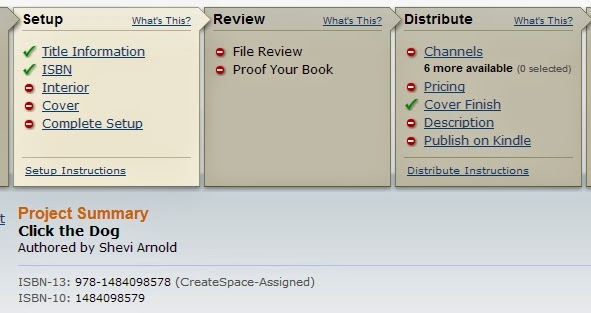
This shows the Project Homepage of a picture book I’m working on called Click the Dog. The green check marks mean that I've completed these stages. The red circles with white lines mean I haven’t done these yet. And anything marked with a clock icon is currently under review with CreateSpace. Note: once you have acquired a CreateSpace ISBN for a project, you cannot change the ISBN for that project.

Click on “Title Information” under Setup. Fill in the required information on the next page (you can tell it’s required because it has an asterisk after it). This includes your book’s title, the primary author, and the Language of your book. You’ll also want to click on the drop-down menu for “Add Contributors” to select “Illustrated by” and then click on the blue “Add” button to credit the illustrator, too. Look over all the other fields to see if there’s anything there that you need to fill in because it’s relevant to the particular book you’re publishing. When you’re done with that, click on the blue Save & Continue button at the bottom of the page. This will take you to the next page, which is the one where you can add your own ISBN (if you have one and want to use it) or get an assigned CreateSpace ISBN.
Setup, Review, Distribute, and Sales & Marketing pages on CreateSpace have this on the left. Here it is with the Setup menu open. This makes it easy to access the particular page you need to go to while you’re working on a book. You can make changes on almost anything while you’re still setting up your book, except for the ISBN. The ISBN remains fixed after CreateSpace assigns you one.

Once you have your ISBN, you can copy and paste the number into your copyright page. And once you've done that, you can turn that page into a bitmap. And once you’ve done that you’re now ready to turn the file of your book into a PDF. Yay!

The vector-design program you’re using may have three ways to do this.

1. You might see a “Publish to PDF” option in the File drop-down menu.

2. There might be a PDF option in the Print menu.


3. And you might be able to choose PDF as a format under Export.


Whichever way you do it, make sure to check all the options to verify that your PDF will have 300dpi, be in CMYK, and (if that’s available) made up of bitmaps. Once you've published, printed, or exported to PDF, open your PDF file in a PDF reader to make sure that it looks the way you want it to. If it doesn't—for example, if it's in grayscale or the illustrations don't go all the way to the edges of the page—go back to your file, try to create a PDF again (possibly using a different method), and try to see where you might have gone wrong. Eventually you should be able to create a PDF that’s exactly the way you need it to be. You’ll also need to create a PDF of the file with your book's front cover, back cover, and spine. (For more information on creating this file, check out the article about illustrating in this series. You can also check out the CreateSpace article on formatting your book's cover.)

Now that you've created the PDFs for your book's interior and its front and back cover, you’re ready to move onto the next step: uploading your book's interior.


Select “Full Color” under Interior Type, and then click on “Choose a Different Size” to select the trim size for your book. Then select “Upload your Book File,” click the blue Browse button, find the PDF of your book’s interior that you created, and double click on that.


You'll be asked to select whether or not you want the interior pages to bleed. “Bleeding” means that the artwork will go past the trim size, so that when the book is trimmed, the artwork will go all the way to the edges of the page. For most picture books, you'll want to click on “Ends after the edges of the page.”  Leave “Run automated print checks and view formatting issues online” checked. Scroll down and click on the blue Save button. Your book should now upload. This step will probably take several minutes, since you are going to be uploading a rather large file.

When it's done uploading, you'll have the opportunity to review the file online. Look over each page very carefully to see if there's anything you've missed. There could be a missing period or a word accidentally written twice. Maybe the text doesn't show up against the background as well as you'd like it. Use the double page view to check how the odd and even pages that will go together look side by side. Make sure that everything is exactly how you want it—because if it isn't, this is the last time you'll be able to easily fix what needs to be fixed.

The Interior Reviewer will automatically tell you about certain issues, like if parts of your books are less than 300 dpi, and which pages have these issues. Make sure to click on each issue so you can figure out what needs to be fixed and where. If anything does need to be fixed, you’ll have to upload a new file. Jennifer from CreateSpace put together a list of the top 10 file specification challenges publishers seem to run into when trying to upload their books and covers to CreateSpace’s website, so you might want to check it out if you run into any issues.

The Interior Reviewer from "Members' Top 10 Specification Challenges" from the CreateSpace forums, article by Jennifer, CreateSpace PrePress. Here you see what happens when an image appears to be placed too close to the edge of a page.

When the Interior Reviewer no longer finds any issues and you're completely satisfied with how your picture book looks online, click the blue Save button at the bottom. If you don't see a Save button at the bottom, try uploading your book's interior with a different browser. I ran into this problem with Chrome, but everything was fine when I switched to Firefox.

Once that's done, it's time to save your work and move onto the cover. You can go there by clicking the blue Save & Continue button at the bottom or Next at the top or of the Interior page. You can also go there by clicking on Cover under Setup on the left.


Select glossy or matte. (I don't recommend ordering a sample copy, since this will not be a copy of your book and it will cost over $6 with shipping, but that is an option.) If you're not sure which to choose, look at picture books that you have at home or from your local library. Do they have glossy or matte covers? If you see both kinds, which do you prefer? I went with glossy, because that seems to be standard, and I like the way my cover came out, but it's up to you.

Now it's time to upload the PDF you made with your book's back cover on the left, the book's spine in the middle, and the book's front cover on the right. Under “Choose how to submit the cover of your book” select “Upload a Print-Ready PDF Cover.” Click the blue Browse button, find the PDF of your cover on your computer, and double click on that.


The maximum size for your print-ready PDF cover is 40 MB, and if you converted your file to a bitmap (or combined all objects in a pixel-based art program), your file should be below that. Once you've successfully uploaded your cover, click Save & Continue.

This will take you to Complete Setup, where you'll be able to check everything over and then submit your book for review. Once you've done that, you'll see a little clock icon next to File Review on your book's Project Homepage while CreateSpace is reviewing it. When the review process is done, that clock icon will turn into a checkmark. You can then order a proof of your book. It's highly recommended that you do so, but if you’re in a hurry and you're absolutely sure the book looked perfect when you reviewed it online, you can skip this stage.  I did that with Fay Fairy’s Very BIG Problem, because I needed copies of the book for a street fair and couldn't afford to wait. (Unfortunately, it still didn't arrive in time.) The book looked exactly as it did when I reviewed it online, so I don't regret skipping this stage. Your book's proof will look almost identical to what your finished book should look like, except that it will have a page in the back with the word “proof” written in huge letters.

And now you're ready to set up your book for distribution. Yes!

I'm going to speed through this last section, because—unlike the process of putting your book together, converting it to a PDF, and uploading it—it’s mostly self-explanatory.

 You’ll start by selecting distribution channels. You’ll probably want to select all of them: Amazon.com, Amazon Europe, CreateSpace eStore, Bookstores and Online Retailers, Libraries & Academic Institutions, and CreateSpace Direct. 


Some of these channels are only available to those with a CreateSpace supplied ISBN, which is another reason why you’ll probably want to use theirs instead of buying your own.


One thing worth noting about the CreateSpace eStore is that you can give people the link to your book's page there, along with a discount code that will let them get your book for less. For example, if you go to https://www.createspace.com/4807674 and enter the discount code JHCCQCWM, you can get Fay Fairy’s Very BIG Problem for 30% less than the retail price. For the most part you'll be buying your own books at cost, which is currently $3.65 for a 40-page full-color picture book, but the link and discount code might be useful if you're trying to give a wholesaler, bookstore, or school a special deal. Of course, you can also purchase the books yourself at cost and have them shipped either to you or to the wholesaler, bookstore, or school.  
  
Once you've selected your book's distribution channels, it's time to set the price. CreateSpace takes all the guesswork out of this, by telling you what the minimum list price is for your title is in US dollars, British pounds, and Euros. It also tells you how much you'll be making in each of the distribution channels based on the prices you've set. While it might be tempting to set your price high so you'll make more money for each copy sold, be careful you don't price yourself out of the market. Paperback picture books tend to be cheap. On the flip side, don't worry if the minimum list price seems too high. Amazon and other retailers (excluding CreateSpace's eStore) will almost certainly sell your book at 10% or more off the retail price.

Finally, you enter the required information in your book's Description page. This includes the book's description (up to 4,000 characters and with limited HTML coding, but watch out for problematic characters, like apostrophes and ampersands); the BISAC category of your book (probably a subcategory of Juvenile Fiction), which you’ll select from a menu; your author biography (up to 2,500 words about your qualifications or reasons for writing this particular book); the recommended grade reading level for the book; the book’s language and country of publication; and the five most relevant search keywords for your book.


And that is how you indie publish a picture book with CreateSpace.

I hope you've found this helpful, and if you have (or if you still have questions), I hope you'll let me know in the comment section below. 


Happy writing, illustrating, and publishing!


Monday, June 16, 2014

Everything You Wanted to Know About Publishing a Picture Book (But Didn’t Know Who to Ask): part 1 of 4

So I recently published my first picture book, Fay Fairy’s Very BIG Problem, and I learned a few things (or to put it another way, I ran into a few big problems myself and was able to find out how to fix them).

I figured it would be a good idea to put together a series of articles about the experience, since it doesn't seem anyone else has really done that. There are a million and one blog posts about how to indie publish in general, but when it comes to publishing picture books, the information seems to be scattered in little answers to little questions all over the 'Net. This post will hopefully help me get it right from the start next time, and hopefully it will also help anyone else interested in indie publishing a picture book avoid some of the problems I ran into. 

First, why would you want to publish a picture book?

There are so many good reasons not to publish a picture book. Picture books are the most expensive books to create, because full-color books cost more to print (and most picture books have to be full color). If you’re not an illustrator, hiring a good one should cost you minimally a hundred dollars per page. Minimally. Per page. It can cost a lot more than that for good art, and you want good art. There are just too many picture books out there with bad art, and no one needs that.

So if you're thinking of publishing a picture book because you think they're easy to write and you can get your six-year-old to supply the illustrations, well . . .   

I'm not saying you shouldn't, but don't do it thinking you're going to sell a thousand or even ten copies. Do it because it sounds like a fun family project. Otherwise, don’t do it unless you’re an illustrator yourself.

Okay, so let’s say you're a writer-illustrator, like me. I was an editorial cartoonist, a newspaper illustrator, a layout artist, an arts-and-entertainment writer, and even a consumer columnist. Of course, you don’t have to have been all of that. You just have to have some talent in writing and especially illustrating, and you have to enjoy putting words together with illustrations. Illustrations are more important to a picture book than writing, because you there are lots of picture books that don’t have words or that have very few words; but there’s no such thing as a picture book without illustrations or some sort. Let’s say you're going at this with a realistic understanding of the rewards. You know you're not going to sell a lot of copies. Sure, it might happen, but that's not your expectation or your goal. You know your book will be competing against The Cat in the Hat, and Winnie the Pooh, and whoever Disney’s latest princess is for a book buyer’s dollars. And you can’t expect to win against that sort of competition.

So why are we doing this?

We're doing this because professional picture-book writers and illustrators know that the real money that’s to be made in picture books doesn't come from selling copies of books; it comes from paid school and library visits. Professional picture-book writers and illustrators also know that one leads to the other. Do a reading at a library, and chances are that some of the parents will be interested in buying copies of your book. Yes, there are author visits in middle schools, and sometimes even in high schools, but it’s generally easier to get gigs like this with picture books. It's also fun.

That was my reason for deciding to publish a picture book after having published four novels for kids, teens, and adults who like books for kids and teens. I wanted something for a younger age group; I wanted something for library visits, school visits, and parents with small children at street fairs. And I understand I’m still not finished, because during the last street fair I participated in, I met some kids and parents who were looking for early chapter books, the kind of thing suitable for third grade. I actually have one of those I started to work on, Gloria Turkey: Biggest Bird on Broadway, a funny tall tale about the creation of the first Macy’s Thanksgiving Day Parade. It’s on the backburner (along with several other books), because it will require a hundred or so more illustrations than I've already put into it (about 50 or 60). But at least I've now expanded my potential audience with my first picture book.  

Getting back on topic, let’s say you have what it takes to make a picture book, and you’re going into this with reasonable expectations. Since youve decided to go it on your own, the first thing you’re going to want to do is find a service that will print and distribute your books.

I picked CreateSpace for Fay Fairy’s Very BIG Problem.

Why CreateSpace?


CreateSpace and Lightning Source are the two most popular printers for indie published books. CreateSpace belongs to Amazon, which makes it super easy to get your book published with them available on Amazon. Lightning Source belongs to Ingram, which is one of the world’s largest distributors of books to schools, libraries, and brick-and-mortar bookstores, which means that using Lightning Source makes it easier to get your books into schools, libraries, and brick-and-mortar bookstores. I use Lightning Source for my hard cover books, because CreateSpace has yet to offer hardcovers as an option; but I use CreateSpace for everything else because it’s just easier to work with—and it’s free.

“Easier,” however, doesn't mean trouble-free, hence the problems I ran into and the need for this series.


Okay, so now you know the why, who, and where. The next article in this series will deal with the most important question: how? The next article will be all about writing a picture book for publication. Don’t miss it!

Everything You Wanted to Know about Publishing a Picture Book (But Didn't Know Who to Ask):
Part 1—Introduction
Part 2—Writing
Part 3—Illustrating

Part 4—Publishing

Monday, June 04, 2012

How to Find a Great Book Cover Designer, and the 7 Rules You Need to Know to Work Together (without Driving Anyone Crazy)

Chances are you’re going to want to publish more than one book—and if you’ve put all that effort into finding a good designer the first time, you’ll want to have a good relationship with that designer so that he or she will want to work with you again. Part of this means knowing upfront how much everything will cost, what is and isn't included in the price, when the designer expects to be paid, and how long it will take the designer to finish the work.  


The first step to finding a great cover designer is to get recommendations, and the best way to do that is to hang out in places where other indie authors hang out. Most indie authors are proud to show off their covers—after all, it’s a great way to publicize your books—and are more than happy to tell you who designed them.

One of my favorite indie author hangouts is the ebook experiment group, which I started on Facebook. At the bottom of this post you’ll find links to the websites of different cover designers who have been recommended by indie authors I’ve met there and elsewhere on Facebook.

Twitter chats, like #IndieChat and #MBPA, are another good way to connect with indie authors and to discover book cover designers you might want to work with.

Once you get a recommendation, check out the designer’s website. Most cover designers today have a website, which should include a portfolio of previously published work. You need to see if the designer is really as good as the writer who recommended the designer says, and you also need to see if the designer’s work fits your particular book. Doctor Seuss, after all, might have designed great covers, but that doesn’t mean he would have been the right person to design the cover of a vampire novel, not unless the title of it is One Fang, Two Fangs, Red Fang, Blue Fang.

So what should you look for when you check out a recommended designer’s portfolio?

Read my two previous posts on cover design ("What You Need to Know About Cover Design Before You Indie Publish Your Novel" and "Indie Publishers, What You Need to Know About Book Covers") to get an idea of what makes a great book cover great. In short, you should look for clarity, the right mood, something that fits in with the current bestsellers in your genre, a good hook, simplicity (as in no overwhelmingly distracting colors or other elements), and something that makes the book stand out among competing titles. Some of those requirements—particularly “standing out”—cost more, so you might want to stick with something that’s just professional and standard for the genre until you can afford something better.

Beyond what you should be looking for, you should also learn to recognize the things you need to avoid. The guest blog post I wrote for Indies Unlimited (Cover Basics, Part II) might help you there. It’s an uncharacteristically snarky, but very funny, post on the things I think but don’t say when I see badly designed covers. Hopefully it will give you a laugh or two, as well as an idea of what not to do.  

Okay, so let’s say you’ve gotten some recommendations, checked out several websites, and found a designer whose work you like. The fonts and images are clear and can’t be misconstrued. (I saw one with what appeared to be a phallic symbol on the cover, which later turned out to be a very strange, stylized Red Riding Hood. Unless you’re writing erotic fiction, this is not a good thing.) The mood (dark, humorous, playful, sexy, etc.) fits the mood of your book. The designer has experience designing books in your genre. The covers you found on the designer’s website had a good hook, one that made you want to open the book and start reading. The covers are simple, in that everything in them tells you something about the story you couldn’t get from the title alone, and nothing is redundant or distractingly overwhelming. It’s contemporary, and not hopelessly outdated. And—if you can afford something special—the cover isn't like one you’ve seen a million times before, one that could fit half the books in the same genre. The price also fits your budget. Great! Now what?

Most designers will indicate on their websites how they want to be contacted, so contact the designer in that way. First find out if the designer is open to working on your project, how long it will take, and how much you can expect to pay and when. Be aware that it might take an in-demand designer several months to finish your project, and allow for that time in your publication schedule. Also be aware that the many designers expect to get paid partially, or even fully, upfront. Some charge for edits. Some don’t. It’s best to have everything clear in writing from the start so that there are no misunderstandings.

Before I tell you how to work with a cover designer without driving yourself—or the cover designer—crazy, let me explain why that’s something you really want to do.  

I’m a writer, but I’m also an illustrator. As an illustrator, I have worked with so many difficult clients that it has put me off working for individuals altogether. I love working with magazines and newspapers, but you probably couldn’t convince me to design your book cover. I’ve been burned too many times.

You don’t want to do that, because chances are you’re going to want to publish more than one book—and if you’ve put all that effort into finding a good designer the first time, you’ll want to have a good relationship with that designer so that he or she will want to work with you again. Even if you decide to work with another designer, that second designer might wonder why you switched designers, contact the first designer, and discover you’re not an easy person to work with. You don’t want to be that kind of client. You want to be the kind of client a designer loves working with, so that your designer will not only want to work with you again but will give you good recommendations for other designers if for some reason that designer can’t help you the second time around.  

That takes care of the “why” regarding not driving the designer crazy. Now let’s look at the “how.”

7 Rules for Working with 
a Book Cover Designer

1. Get everything in writing. If you’re getting a custom-made cover, get everything in writing so you know exactly what you’re paying for, how much it will cost, when you have to pay, and when you can expect to get your finished artwork. Most designers charge at least partially upfront. Some include edits in the price, and some charge extra for them. You’ll need some of this information in writing if you choose to buy a premade cover, but there’s less of a hassle involved when you can’t make changes, like you can with a custom-made cover.

2. Be clear with your instructions from the start. I once knew a newspaper manager who could babble on for an hour without anyone understanding what it was he wanted. No one can give you what you want if you can’t say what it is you want. Be clear. Let the designer know a little bit about your book, like its title, genre, intended audience, mood, and basic plot. Do not drive the designer crazy with too many details.

3. Don’t expect Bloomingdale’s at Wal-Mart prices. While it’s important to have a clear vision, it has to fit the designer’s abilities and your budget. You might want a cover that looks exactly like the cover of the latest bestseller, but some of those are painted by illustrators who work a month or more on that one illustration and charge thousands of dollars. Others require hiring a studio, a photographer, a costume designer, models, and more. Like the Rolling Stones song goes, “You can’t always get what you want…”  Adjust your vision to fit the designer you’ve chosen. Don’t try to change the designer to fit the cover you have in your head. That never works out.

4. Ask questions. One of the best things you can do is ask the designer for input. Maybe the designer has great ideas that never would have occurred to you. Or maybe the designer has made certain design choices you don’t understand. Don’t pretend to know things you don’t, and don’t be embarrassed to ask.

5. Respect the designer. Realize the designer is a professional and trust him or her to make the right choices for your book. If the designer isn’t a professional, you shouldn’t hire him or her.

6. Be professional. Be courteous, pay on time, and value the designer’s time, work, and talent. For example, some designers don’t charge for edits, but that doesn’t mean you should push it. There’s no justification for more than one edit, two tops.  It’s possible the designer might come up with a terrific cover concept that doesn’t exactly fit what you have in your book. Maybe the cover has an extreme close-up of a brown eye, and you’ve described your character as having blue eyes. Just how important is the character’s eye color? Does the entire story revolve around it? If so, you should have mentioned it in your brief description of the story. If it isn’t, consider that it’s easier to search your manuscript for blue eyes and replace them with brown eyes than it is for the designer to go back to the drawing board to make those brown eyes blue. You can ask the designer how much trouble it would be to make that change, but only if you’re paying for a custom cover and this is your first edit. I don’t think anything drives me crazier than a client who keeps asking for changes after changes, mostly because that client doesn’t really know what he or she wants or how to communicate it.

7. Give credit where credit is due. Ask the designer how he or she would like to be credited in your book, and make sure you let other indie publishers know what a great job your designer did.


The two most important words to remember are clarity and respect. Ask questions so you have a clear idea of what you can expect, and communicate those expectations clearly. You are a writer, after all, and the Internet is a written medium. There’s no reason why a writer should have a difficult time communicating clearly online. And try to respect that the designer is a professional, one who has studied and worked hard to get to where he or she is in the profession. You wouldn’t tell your doctor what you think it best for your body. You would tell your doctor what’s wrong and ask for his professional opinion. Tell the designer about your book, and ask that designer for his or her professional opinion. Some of the worst designed covers I have ever seen were created by designers who were trying to follow the writer’s detailed instructions. The writer was probably happy with the finished result, but probably not as happy with his or her sales. Treat the designer like a professional, and the designer will see that you too are a professional.

And finally, be flexible. Designers aren’t mind readers. They can’t give you exactly the cover concept you have in your head. But if you’re flexible and clear about what you want, you might get something even better.


* * *

And now, here’s a list of cover designers other writers I know have been happy with. Some charge less, and some more. I’ve only listed the more expensive designers I think are worth the extra money. This is by no means a complete list, but it is a good place to start. If there’s another cover designer you’d recommend, I hope you’ll tell us about him or her and leave a link in the comments below.  

  • Dara England has decent premade ebook covers starting as low as $18. These are particularly suited to romance and historical fiction, but you’ll find some YA and paranormal covers in there too. She offers both premade and made to order e-book covers, and her prices are quite affordable: http://mycoverart.wordpress.com/clearance/


  • I was really impressed by a friend's book cover, and this is the place that did it: http://probookcovers.com/ Right now covers are just $99. These are first-rate covers at a fraction of the cost.


  • Carl Graves (cover designer, reasonable rates) website: http://extendedimagery.blogspot.com/ Client list includes Alexander Sokoloff, Barry Eisler, Erik Lynd, J.A. Konrath, Jack Kilborn, James Swain, L.A. Banks, Lee Goldberg, and Tobias Buckell.


Of course, if you do have the skills and experience to design your own book cover or for some reason you still don’t want to hire a professional, here are some good places to look for images that could look good on your cover and don’t cost a lot:

Saturday, March 24, 2012

Indie Publishers, What You Need to Know About Book Covers

Indie publishers, think of your book's cover as the most important page of your book. Why? Because it might be the only one a potential customer will see.

People say you shouldn't judge a book by the cover, because that’s exactly what we all do. We judge books by their covers. Your story might be amazing, but if your cover doesn’t grab a reader’s attention, that reader will pick another book over yours.

That’s why you should try to make your cover the best that it can be, and unless you're a professional designer, that means hiring one.

When you’re sick, you go to a doctor.

When you have legal problems, you call a lawyer.

Yet, it’s amazing how many indie publishers choose to design their own covers.

It’s true that you can. You can also diagnose and treat your own illnesses, and you can be that proverbial idiot who has himself for a lawyer. People do things that aren’t in their own best interests all the time. Sometimes they do it to save money, but more often than not they do it because they think they can.

Our mothers told us, “You can be anything you want to be.” And that’s true.

But to be as good as those who have more knowledge and experience than you, you have to work for it.

You can’t tell yourself, “I want to be a doctor,” put on scrubs, and then start operating on people. You can’t tell yourself, “I want to be a lawyer,” put on a suit, and then start representing clients in a courtroom. You have to learn the profession first. And I don’t know about you, but I wouldn’t want to be a doctor’s first patient or a lawyer’s first client. I would want a doctor or a lawyer with experience.

Smart writers know what they can and cannot do, and they hire people to do the things they can’t. J.A. Konrath and John Locke hire cover designers, and it shows. Their books look good, and so do their sales.

Shot of Tequila by J.A. Konrath

The Love You Crave by John Locke

What do these covers have that many other covers of books put out by indie publishers don’t?

• Clear, legible text--You'd think this would be a no-brainer, but I've seen so many covers with titles that couldn't be read once they were shrunk down to the postage-stamp size they appear in the Kindle store. It's not enough that the title of your book is legible on your book's page. The title also has to be legible when the cover of your book is shown super tiny alongside the covers of other books on Amazon search page.

• The simplicity of the design--Each cover contains just one element that pulls focus. With Konrath's book, it's the glass of tequila. With Locke's book, it's the girl's body and legs. You know right away what you're supposed to be looking at. There's only one text type in Konrath's cover, while Locke's has two (although it probably would have been better with just one).

• Everything fits the book’s title--The book entitled Shot of Tequila shows a shot of tequila. Look closely at the glass, and you see two guns. Clearly "shot" has two meanings here. The red of the cover makes you think of something hot and spicy, maybe even dangerous. The only fault I can find with Locke's cover is the font selection. The title appears to be in Comic Sans, which is one of the most overused fonts, and it isn't very sexy. But there's no denying that cover is saying this book is about the love you crave, a beautiful, sexy, red-hot kind of love.

• Emotional response--Both books use red to imply something hot. Konrath's cover conveys something exciting. There are guns in it, and the word "shot." Someone is going to get shot. Don't you want to know who, how, and why? Locke's cover screams craving for hot romance.

• Color balance--these covers use very few colors--just reds, yellows, and darker and lighter variations of those two colors-- which makes it much easier to achieve harmony, balance, and a unified message. Too many colors create what is known in the newspaper business as the "Carmen Miranda" affect, after the singer known for her colorful fruit-covered hats. Yet too many indie publishers think the more colors a cover has, the better. You also don't want to go too far in the opposite direction. Black-and-white is fine for interior pages, but you should put some color on your cover. Just one element of color can be very powerful. Like the red apple on the almost black-and-white cover of Twilight. That single element of color really pops. (The Twilight cover works for other reasons, which I hope to cover in a future article.)


• Flow--Flow is all about where your eye is drawn and where it goes from there. See the way the curve on J.A. Konrath's name mimics the curve of the rim of the glass? See the way it acts like the bottom of the glass or maybe light shining through it? That really makes you pay extra attention to the glass, which is important, because that makes you notice the two hidden guns. And look how everything in John Locke's cover is pointing to... You get the picture.

I've designed close to 100 magazine and newspaper covers, but I wouldn't have been given that first job if I didn't have the education and hadn't proven that I knew what I was doing in that newsweekly's layout department and as its illustrator. My editor wouldn't have let me design the most important page of his magazine if I was just some person who woke up that morning and said, “I want to be a magazine cover designer.”

So unless you have a design background yourself, hire a professional who does.

In a future article, I plan to explain how to choose and work with a book cover designer. Stay tuned.


BOTTOM LINE: Smart indie publishers know what they can and can’t do, and they know they need to hire people to handle the things they can’t, like designing their own cover.


What about you? Which books have covers that you think really stand out? What made them stand out? What do you think of the covers of indie book in general?

Wednesday, February 15, 2012

The Why and How of Indie Publishing Hardcover Editions

My husband and I are currently working on the hardcover edition of Toren the Teller's Tale, and I think the information we're collecting might benefit others, so here it is.

Why make a hardcover edition?

Hardcover editions are better for libraries. 

Having a hardcover means your book will be shelved on a shelf and not jammed into a carousel. (We learned this the hard way with our Dan Quixote paperback. After seeing how mangled it got, we created a new "school and library edition" paperback that fits a carousel better and has discussion questions on individualism, conformity and bullying in the back. The largest format that fits the carousels well is 5.25"x8", so I highly recommend sticking to that size when it comes to a paperback.)

J.A. Konrath recommends publishing your book in every possible format to open it to the most markets, and I agree.

Having a hardcover library edition is particularly important if you are considering doing school and libary visits, which are a good way to market a children's book and--more importantly--a potential source of additional income. 

While you'll probably sell paperbacks to students (if you decide to sell copies in connection to your visits), the hardcover edition will be better for readings and will probably appeal more to the librarian or library media specialist. It's less important if your genre is one that's rarely published in hardcover, like paperback romance.


So how do I make a hardcover edition?

Lightning Source is a good POD provider, because it does hardcovers and works with libraries. It's owned by Ingram, which is a distributor that works with everyone, particularly libraries. Working with Lightning Source will get your book into Ingram's catalogs, which are sent to libraries and schools. 

Lightning Source is, however, notoriously difficult to figure out. It can also be rather expensive, not only because of the setup fee, but because it asks that books be formatted in Adobe Acrobat as a PDF/X-1a:2001 compliant file, and Adobe Acrobat costs hundreds of dollars. We're currently trying to see if we can use Nuance PDF Create instead, but unfortunately Lightning Source charges for each upload that isn't formatted correctly. It's risky. One of the reasons we chose CreateSpace for our paperbacks is that the startup cost is $0. CreateSpace will even provide you with an ISBN (Lightning Source doesn't, so you have to buy your own). CreateSpace is also a lot easier to use.

We're still in middle of working with Lightning Source, but here are a few things we've learned.

While most libary books have jackets, there are some children's books that have laminated covers. 

I prefer laminated, because it doesn't rip and it's easier to clean. Some titles like this are the Wimpy Kid books, the Origami Yoda books, and Cornelia Funke's Dragon Rider.  

This means that if your book is similar, there's no reason why it shouldn't have a laminated cover. All of these covers are matte, although they have glossy elements. I don't know if CreateSpace allows for glossy elements, but it does allow for some gold. Dragon Rider has the title and the author's name in gold, so that's something to consider if you're interested, although it will cost more.

The main thing we've been researching lately is pricing. 

How much should you charge for a hardcover edition?

This is what I found out. First, go to page 20 on this PDF document: http://www1.lightningsource.com/ops/files/pod/USPODOpsManual.pdf

You'll find there are several options. 

Your book will probably be a small hardcover, as "small" refers to the dimensions of the book, not the number of pages. (My guess is that "large" hardcover refers mostly to picture-book dimensions.) Your book will therefore cost $6.00 + $0.013 per page (a book with a jacket costs $1.55 more) per copy to print. A 500-page book, for example, costs $12.50 to print.

But that doesn't tell you how much the retail cost of your book should be. 

Lightning Source recommends that you allow for sellers to take 55% of list price if you want the widest distribution. This lets the stores sell your book at a discount.

This means you should divide your printing costs by 0.45 to get the minimum retail price for your book, which in the case of a 500-page book would be $27.78. You should then add a bit so you're not selling at a loss.

The next question then becomes, "How much will the market bear?"

To find out, go to the current New York Times besteller hardcover list for your type of book. 

In the case of my 500-page children's/YA novel, that would be this list: http://www.nytimes.com/best-sellers-books/2012-02-19/chapter-books/list.html 

While most books are priced below $20, Wonderstruck by Brian Selznick is listed at $29.99, which means this is the top of the range of what you can charge for this kind of book. Fortunately, that's stil $2 over the minimum, so it could work out for this particular book.

Don't expect to make a lot on hardcover editions. The main benefit is just to offer that option for those who need it, like some libraries.

Having a hardcover edition of your book can help you get it on library shelves

If you have any additional information, comments, or questions about hardcover editions, please add them below. Thanks, and I hope this helps!